How to Make a Golf Score Graphic
2026-10-29 · Score Graphics
You've filmed your round, the footage looks good, and now you want that little graphic in the corner that tells viewers which hole you're on and how you're scoring, like the ones on TV golf and the big golf YouTube channels. Good news: you don't need to be a designer, and you don't need expensive software.
This guide walks through what a golf score graphic should show, how to make one yourself in any video editor, and the much quicker way to make one for every shot of your round.
What is a golf score graphic?
A golf score graphic (also called a score overlay or score bug) is a small box that sits in the corner of your video during each shot. It answers the questions viewers have before every swing: who's playing, which hole is this, what's the par, and how is the round going?
It's a small thing that makes a big difference. Viewers can follow the round without you explaining the score out loud, they stick around to see how the card ends, and your videos instantly look more like a production and less like phone footage.
What to put on it
Keep it simple. A score graphic is read in a second or two, so only show what matters:
- Your name (or your channel name), in capitals so it's easy to read.
- The hole number and par, for example HOLE 6 · PAR 4.
- The yardage, if you have it. Viewers love knowing what the shot in front of you is.
- The shot number: 1, 2, 3… A row of dots or numbers that fills in as the hole goes on works well.
- Your score to par: E for even, -1 for one under, +2 for two over. This is the number viewers care about most.
The right size
Make your graphic the same size as your video, with a transparent background, and place the box in one corner. That way it drops straight on top of your footage and lines up every time.
- YouTube videos: 1920 × 1080 pixels (HD), or 3840 × 2160 if you edit in 4K.
- YouTube Shorts, TikTok and Instagram Reels: 1080 × 1920 pixels (vertical). Keep the box away from the bottom and right edges, where the app's buttons and captions sit.
Save each graphic as a PNG. PNG keeps the background transparent, so only the box shows over your video. A JPG would put a solid rectangle over your footage.
How to make one by hand
You can make a score graphic in almost any design or editing app: Canva, Photoshop, or the title tool in Premiere Pro, Final Cut Pro, DaVinci Resolve or CapCut.
- Make a blank canvas the size of your video (1920 × 1080) with a transparent background.
- Draw a rounded box in one corner, in your channel's colours. Leave a gap from the edge so it doesn't get cut off on some screens.
- Add the text: your name on top, the hole, par and yardage underneath, and the score to par big on the right.
- Export it as a PNG and name it after the hole and shot, like H01_S1.png, so you can find it later.
- Duplicate it for the next shot, change the shot number and score, and export again.
Then, in your editor, put each PNG on the track above your footage, starting just before the shot it belongs to.
The catch: you need a lot of them
One graphic is easy. The trouble is that the score graphic has to change after every shot. A normal 18-hole round is around 80 to 100 shots, so that's 80 to 100 graphics, plus a scorecard between holes if you want one. Play with friends and it's hundreds.
Doing that by hand takes hours for every video, and one wrong score on the 4th hole means every graphic after it is wrong too. That's why most creators try it once and give up, or only add a graphic on a few shots.
The quick way: make every graphic automatically
The Score Graphics Generator does all of that for you. You enter your scorecard once and it makes a finished graphic for every single shot of the round, with the score to par worked out as you go. Here's what that looks like.
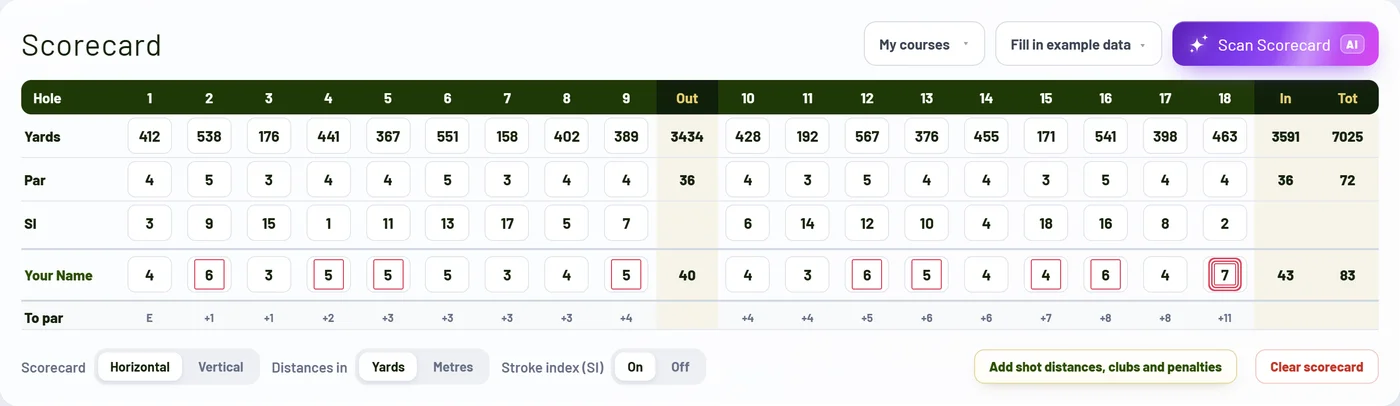
1. Add your round
Type in your pars and scores, or on Pro just take a photo of your scorecard and the AI scan fills it in for you. The score to par for every hole is worked out as you type.
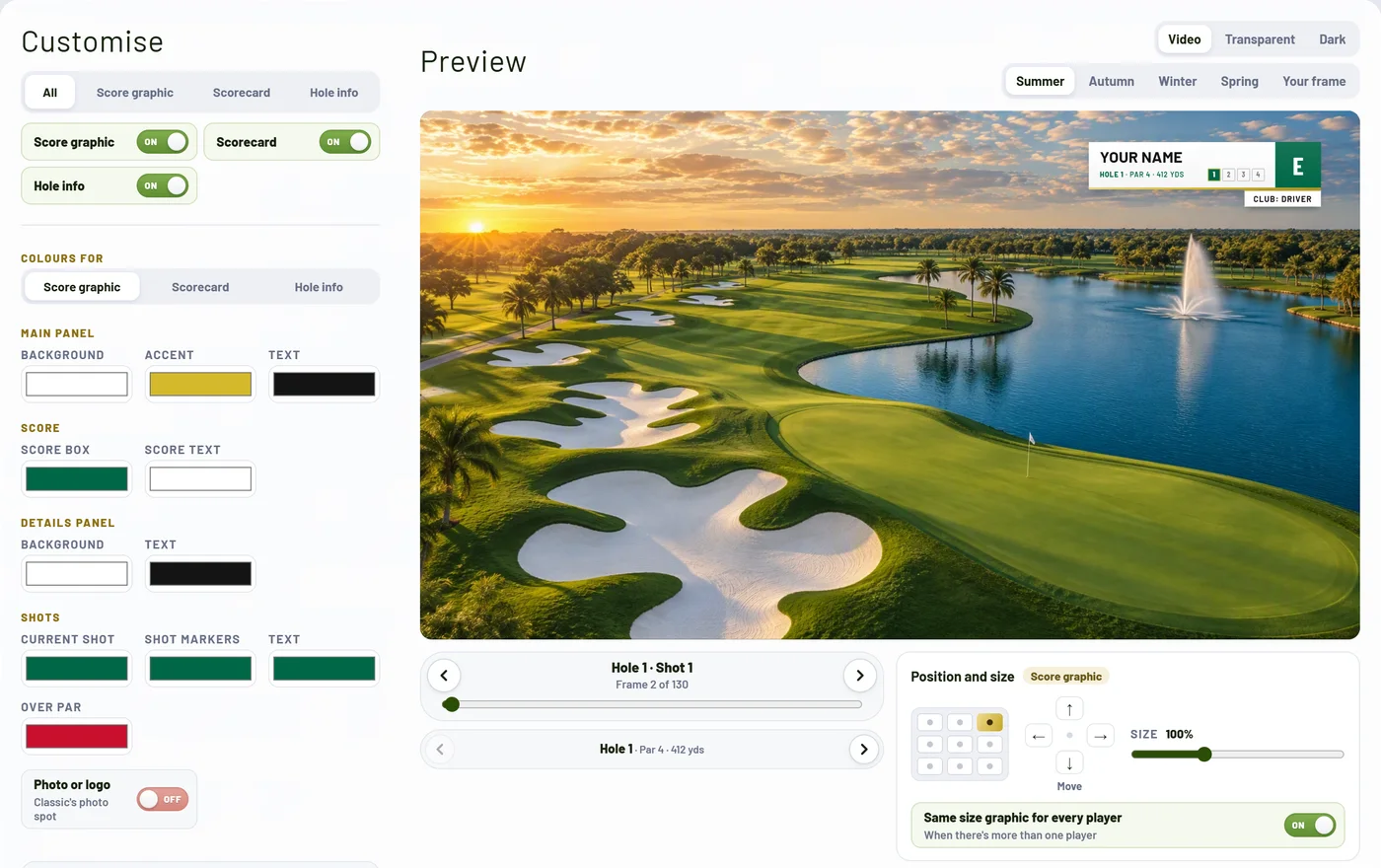
2. Pick a design and make it yours
Choose a design, then set your channel's colours, move it into the corner that suits your footage and set its size. The preview shows it on a real golf shot, and you can step through every shot of the round to check it. Save it as a preset and every video after that takes seconds.
3. Export every graphic in one go
One click gives you a zip with a folder for each hole and a transparent PNG for every shot, already named in order, ready to drop into your editor. Animated designs also come as transparent video clips.
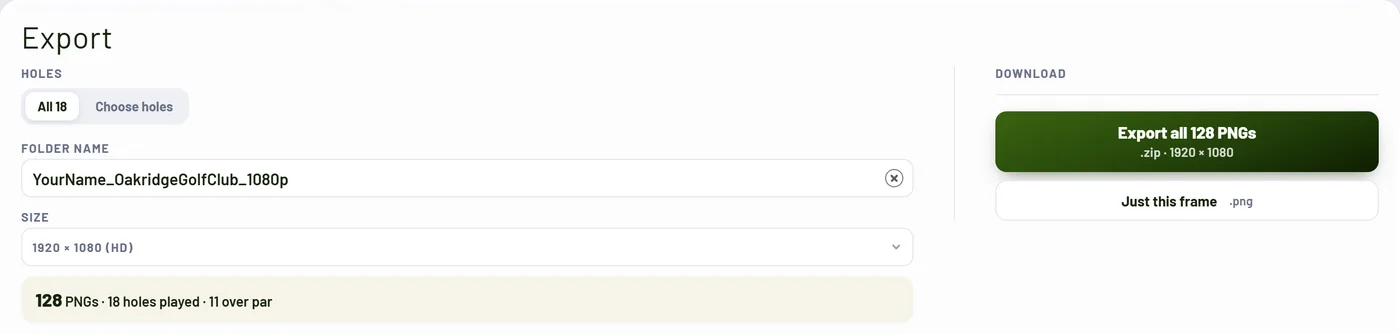
It works with Premiere Pro, Final Cut Pro, DaVinci Resolve, CapCut and any other editor that takes PNG images, and it exports vertical 1080 × 1920 versions for Shorts, TikTok and Reels from the same round. There's nothing to install: it runs in your web browser.
Tips for your first video
- Show the graphic just before the shot, so viewers know what's at stake before the swing.
- Keep it in the same corner for the whole video, so viewers always know where to look.
- Check it on your phone. Most people watch on a phone, so if you can't read it there, make it bigger.
- Use your channel colours. The same colours on every video help people recognise your channel.
- Add a scorecard between holes once you're comfortable. It's a natural pause and viewers love checking the round.
Try it on your next round
You can make a free account and preview every design with your own name on it before you pay anything. For the full walkthrough, including how to place everything in your editor, read the full guide next.
 Full guideHow to Add Score Graphics to Your Golf YouTube Videos