How to Add Golf Score Graphics in CapCut (Desktop and Mobile)
2026-10-30 · Score Graphics
You edit your golf videos in CapCut, it's free, it's quick, and it does almost everything you need. Then you want a score graphic on each shot, like the big golf channels have, and it isn't obvious where to start. Do you build it in CapCut? Do you make it somewhere else and bring it in? And how do you do it on your phone?
This guide covers both versions of CapCut: the desktop app on a Mac or PC, and the mobile app. It shows how to add a score graphic as an overlay, how to time it, and how to handle animated graphics without a black box appearing behind them.
What you need before you start
The easiest way to add a score graphic in CapCut is to make it outside CapCut as an image with a transparent background, then lay it over your footage. You need:
- A transparent PNG for each shot, the same size as your video: 1920 × 1080 for a normal YouTube video, or 1080 × 1920 for Shorts, TikTok and Reels. The box sits in one corner and the rest of the image is see-through.
- Sensible file names, so the graphics sort in the order they happen. H01_S1.png, H01_S2.png and so on (hole 1, shot 1; hole 1, shot 2) works well.
- Your edit roughly cut, so each shot is where it'll stay. Graphics are much easier to add once the footage stops moving around.
If you haven't made the graphics yet, the beginner's guide covers what to put on one and how to build it by hand.
 Beginner's guideHow to Make a Golf Score Graphic
Adding score graphics in CapCut on desktop
- Import the graphics. Click the import button in the media panel and pick your PNGs, or drag the whole folder of graphics from your computer straight into the media panel.
- Drag a graphic onto the track above your video. Your footage sits on the main track. Drop the PNG on the empty space above it, so it sits on its own track over the footage. If you drop it on the main track by mistake, it'll go between your clips instead of on top of them.
- Line it up with the shot. Move the graphic so it starts just before the swing, a second or so before the player hits.
- Set how long it stays. Drag the right-hand edge of the graphic until it ends where the shot ends, usually when the ball lands or the clip cuts.
- Check the position. Because the PNG is the same size as your video, it should line up on its own. If it looks too big or too small, check that your project and your graphics are the same size, rather than resizing the graphic by hand.
A quicker trick: select every graphic for one hole in the media panel and drag them onto the timeline together. They land one after another in order, and you then slide each one to its shot and trim it. That's much faster than dragging them across one at a time.
Adding score graphics in CapCut on mobile
On the phone app, images go on top of your footage with the Overlay tool.
- Get the graphics onto your phone. If you made them on a computer, move them across with a cloud drive or AirDrop and save them to your photo library, so CapCut can see them.
- Move the playhead to the shot. Scroll the timeline until the white line sits just before the swing.
- Tap Overlay, then Add overlay, and pick the PNG for that shot. It appears on a layer above your video, starting where the playhead was.
- Make it fill the frame. If the graphic doesn't cover the whole frame edge to edge, pinch it until it does. A full-frame PNG then puts the box in exactly the right corner.
- Trim it. Tap the overlay and drag its end handle so it finishes where the shot ends.
Repeat for each shot. Zoom the timeline in with two fingers when you're trimming, because it's easy to grab the wrong layer on a small screen.
Animated score graphics in CapCut
An animated graphic is a short video clip with a transparent background: the box slides or fades in, then stops. The trick is to put the clip down first and the still PNG straight after it, on the same track, so the graphic animates in and then holds for the rest of the shot.
The thing that catches people out is the file format. Not every format keeps its transparency in every app, and if CapCut can't read the transparency, you'll see a black box behind your graphic instead of your footage.
- CapCut on desktop reads transparent .mov clips (QuickTime Animation).
- CapCut on mobile keeps transparency in GIFs, so use transparent GIFs on the phone app. Like any overlay, pinch it so it fills the frame and lines up with the still that follows.
If you ever see a black background, the clip isn't broken: it's in a format that version of CapCut can't read the transparency of. Swap it for the right one.
Tips for score graphics in CapCut
- Show it before the swing. Viewers want to know the hole, the par and the score before the shot, not after it.
- Keep one corner for the whole video. Top left or top right usually stays clear of the ball flight.
- Add graphics last. If you cut a shot after placing its graphic, the graphic won't move with it, and you'll be fixing every one after it.
- Use a separate project for vertical. For Shorts, TikTok and Reels, use 1080 × 1920 graphics in a vertical project rather than cropping your 16:9 edit. The short-form guide below covers where to put them so the app's buttons don't cover them.
- Watch it back on your phone. If you can't read the score at a glance, make the graphic bigger.
 Short-form videoGolf Score Graphics for TikTok, Reels and Shorts
The slow part: one graphic for every shot
Here's the honest bit. Adding one graphic in CapCut takes a minute. A full round is 80 to 100 shots, and each shot needs its own graphic, because the shot number and score change every time. Making all of those by hand, and then placing them one by one, can take a whole evening, especially on a phone.
The Score Graphics Generator takes care of the making. Enter your scorecard once and it creates a transparent PNG for every shot, with the score to par worked out as you go. Pick a design, set your colours, and put it in the corner you want at the size you want. Because every PNG is made at the size of your video, it lands in exactly that spot when you drop it into CapCut.
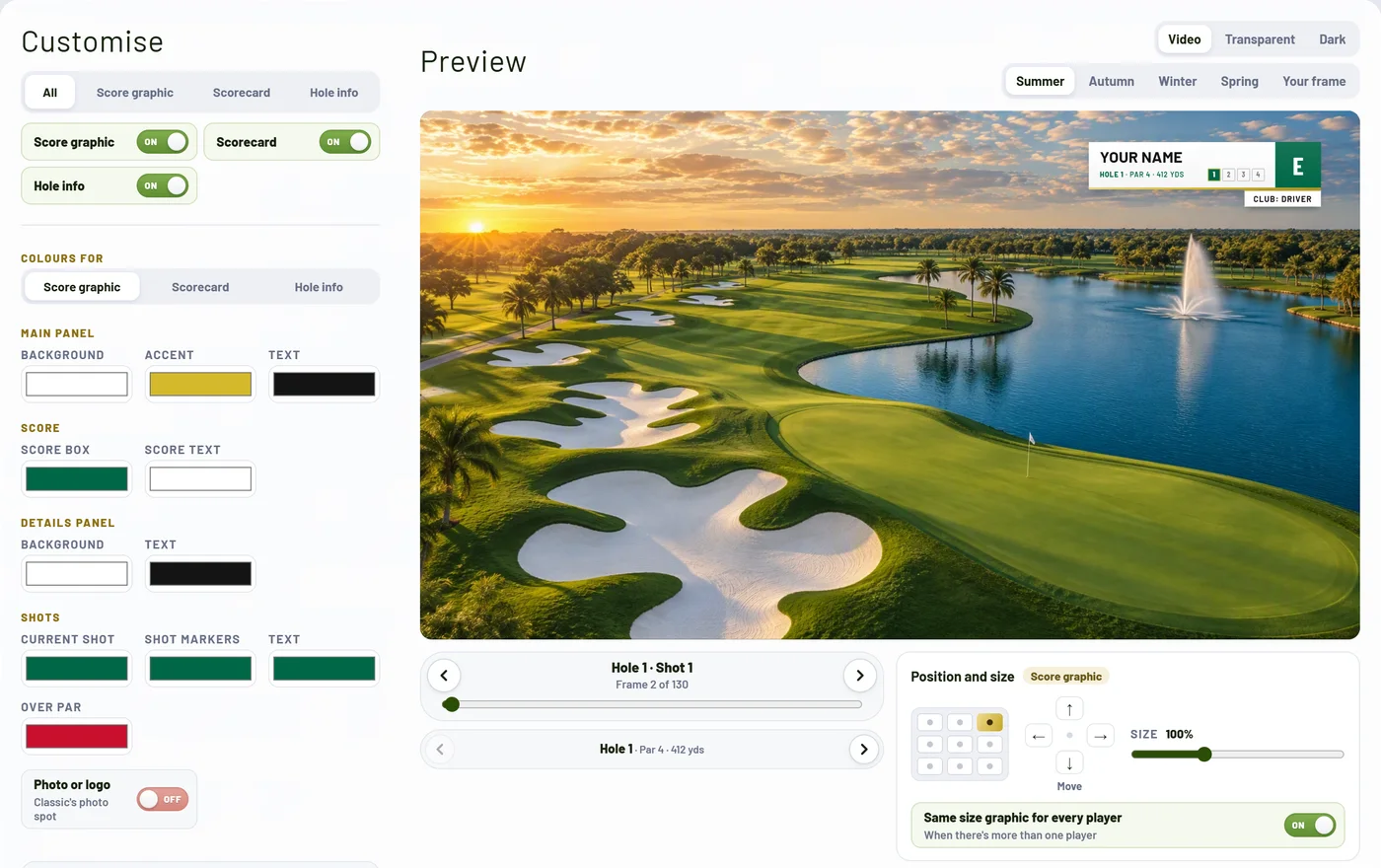
Then export. You get a folder per hole with a PNG for every shot, named in order (H06_S2.png is hole 6, shot 2). That download is what you bring into CapCut: you still place the graphics yourself, but they're ready to drop in, in the right order, and they're all correct.
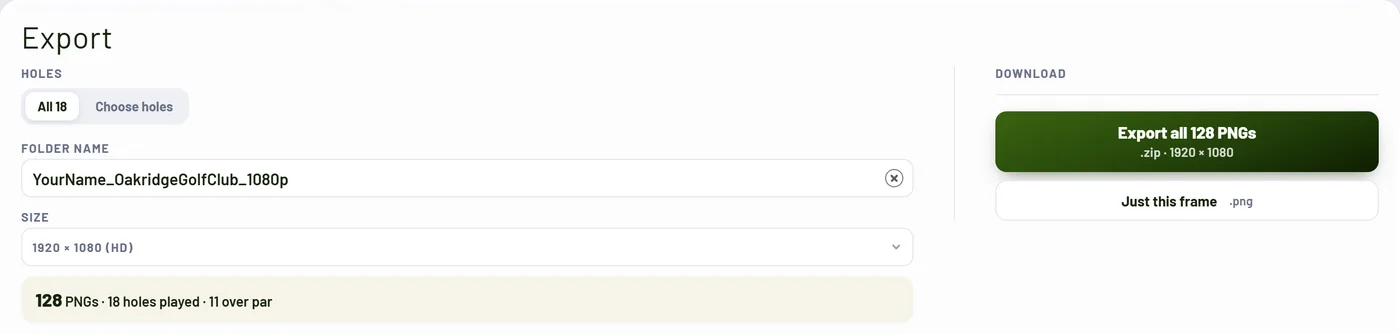
On Pro, animated designs also come as transparent clips, the length you choose. Pick your editing app in the generator's Video format setting and you get the format that keeps transparency there: .mov for CapCut on desktop, and transparent GIFs for CapCut on mobile (1280 × 720, or 720 × 1280 upright).
Try it on your next round
You can make a free account and preview every design with your own name on it before paying anything, and Starter and Pro both come with a 14-day free trial.