Animated vs Still Golf Score Graphics: Which Should You Use?
2026-11-20 · Score Graphics
Every score graphic tells viewers the same things: the hole, the par, the shot and the score. The big choice is how it arrives. A still graphic simply appears. An animated one slides, wipes or pops in, like the graphics on a TV broadcast. Both work. Which is right depends on your videos, your editing time and your editor. Both are score overlays: the only question is whether yours slides in or just appears.
- One PNG per shot: fast to edit
- Works in every editor, phone apps too
- Tiny files
- Nothing moving to distract from the swing
- Graphics that slide, flip and fill in
- Feels like a TV broadcast
- Keeps a long video feeling alive
- Bigger files and a little more editing
Long YouTube rounds: animated if you can. Short-form and phone edits: stills. Best of both: the animated clip, then the still of the same shot straight after it.
Still graphics
A still score graphic is a single transparent image, a PNG, laid over your footage for the length of the shot.
- Fast to edit. One file per shot: drop it on, trim it, done.
- Work everywhere. Every editor, from Premiere and Final Cut to CapCut on a phone, handles transparent PNGs.
- Small files, so a round of 100 graphics barely touches your drive.
- Clean and readable. Nothing moving means nothing distracting from the swing.
The downside: they can feel a little flat, especially in a long video, and a graphic that just appears can look abrupt.
Animated graphics
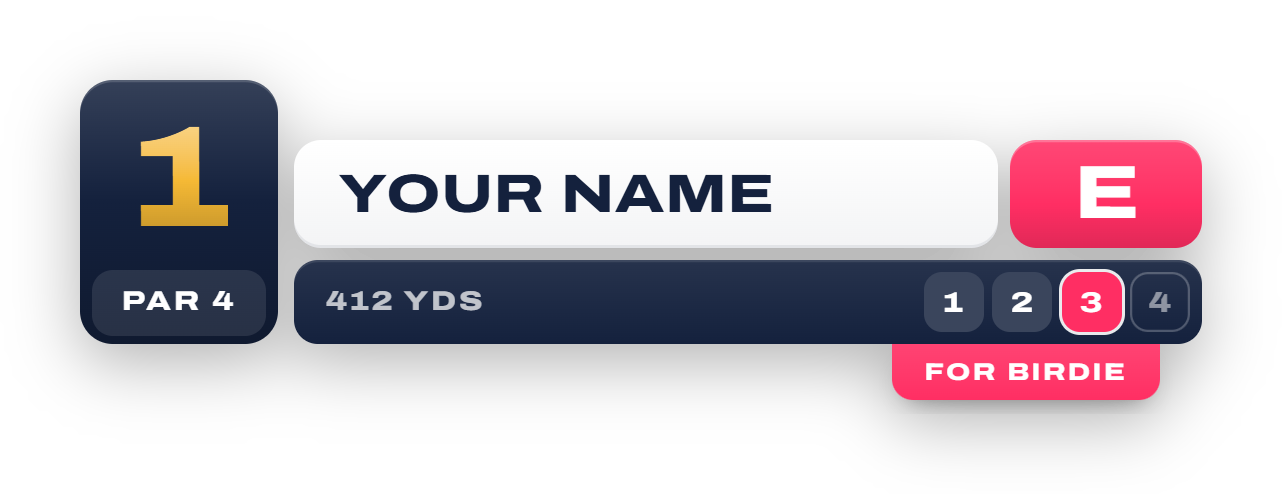
An animated score graphic is a short video clip with a transparent background. It animates in, holds, and can animate out at the end.
- They look like a broadcast. Movement makes a video feel produced, and viewers notice.
- They draw the eye at the right moment, just before the swing.
- They can tell a story: the score changing on screen as the putt drops is one of the best moments in a golf video.
- A channel identity. A signature entrance becomes part of your brand.
The costs: bigger files, and you need a format your editor keeps transparent, or you'll see a black box behind the graphic.
The formats that stay transparent
Transparent PNGs work in any editor. For animated clips, each editor keeps the transparency of only some formats:
- Premiere Pro, After Effects, Final Cut Pro, DaVinci Resolve and CapCut on desktop: a .mov in QuickTime Animation.
- LumaFusion: a .mov in ProRes 4444.
- Browser editors like Canva, Clipchamp and Kapwing: a .webm.
- CapCut on mobile: a transparent GIF, the only format it keeps see-through.
If you ever see a black background behind an animated graphic, the clip isn't broken: it's in a format that editor can't read the transparency of. Swap it for the right one.
 CapCutHow to Add Golf Score Graphics in CapCut
Which should you use?
- Long-form YouTube rounds: animated, if you can. Over 20 minutes and 80 shots, the motion keeps the video feeling alive.
- Shorts, TikTok and Reels: either. A quick animated entrance grabs attention, but a still keeps a fast edit simple.
- Editing on a phone: stills, or GIFs for CapCut on mobile.
- Tight on time: stills. You'll save time on every shot.
There's also a best-of-both pattern that most editors use: put the animated clip down first and the still of the same shot straight after it. The clip plays the entrance and the still holds the graphic for as long as the shot needs, so you never have to stretch a clip.
Both, from the Score Graphics Generator
The Score Graphics Generator makes every graphic of the round from your scorecard. Starter gives you a transparent PNG for every shot in every standard design. Pro adds the animated designs, exported as transparent clips the length you choose:
- Pick your editor and it picks the format that stays transparent there.
- The score changes on screen as the hole's last putt drops.
- Animated scorecards after every hole, each with its own entrance.
- Still PNGs of the same design whenever you want them, for the clip-then-still pattern.
Read next
Setting up your editor for a whole round of graphics:
 Premiere ProHow to Add Golf Score Graphics in Premiere Pro