How to Add Golf Score Graphics in Final Cut Pro
2026-11-12 · Score Graphics
Final Cut Pro's magnetic timeline is brilliant for golf videos: cut the shots together, and everything stays in sync as you trim. Score graphics fit into that well too, as connected clips riding on top of each shot. Set it up right and a whole round of graphics goes on in one sitting.
This guide covers importing a round so every hole has its own collection, connecting graphics to your shots, timing them, and the one setting that keeps animated clips transparent.
Before you start
- A transparent PNG per shot1920 × 1080 HD, 3840 × 2160 4K, or 1080 × 1920 vertical.
- Files named in orderH06_S2.png for hole 6, shot 2.
- A folder per holeFinal Cut can turn them into collections.
- Shots cut together firstGraphics go on quickest once the edit is in shape.
If you still need to make the graphics, the beginner's guide covers what goes on one.
 Beginner's guideHow to Make a Golf Score Graphic
Step 1: set the still image duration
Final Cut gives every still image a default length when it goes on the timeline. In Final Cut Pro → Settings → Editing, set the still image duration to about one shot, 4 or 5 seconds. You'll still trim each graphic, but far less.
Step 2: import the round as keyword collections
Choose File → Import → Media, select your graphics folder, and tick Keywords from folders. Final Cut tags every graphic with its folder's name, so each hole becomes a keyword collection in your event: click "Hole 06" and you see just that hole's shots, in order.
Leave the files in place rather than copying them if you're short on space; either way works.
Step 3: connect the graphics above your shots
In Final Cut, a graphic belongs above the primary storyline as a connected clip. That's the big advantage: a connected clip is attached to the shot beneath it, so when you trim or move that shot, its graphic moves with it.
- Put the playhead just before the swing, about a second before the club meets the ball.
- Select the shot's graphic in its collection and press Q to connect it at the playhead.
- Drag its end to where the shot finishes, usually when the ball lands or the clip cuts away.
- Repeat for the next shot.
Show each graphic before the swing, not during it: viewers want the hole, par and score before the shot so they know what's riding on it.
Step 4: animated graphics as transparent .mov clips
Animated score graphics are short clips with a transparent background that animate in and stop. Connect the clip first, then the still PNG of the same shot straight after it, so the animation plays and the still holds the graphic for the rest of the shot.
The format matters in Final Cut. Use a .mov in QuickTime Animation: it comes in see-through. If a clip ever shows a solid black background, it's in a format whose transparency Final Cut isn't using, so swap it for the QuickTime Animation version rather than trying to key it out.
Tips that save time
- Compound each animated pairOption-G: clip and still move as one.
- Watch the connection pointCut a shot in two? Check the graphic is on the right half.
- A role for graphicsHide them all in one click while you cut.
- Play a few holes throughScrubbing hides timing problems.
- Vertical as its own project1080 × 1920, not a reframed wide edit.
 Short-form videoGolf Score Graphics for TikTok, Reels and Shorts
Where the time really goes
Connecting graphics in Final Cut is fast. Making them is the slow part: every shot needs its own, because the shot number and the score change each time, and keeping the score to par right for a whole round by hand takes hours.
The Score Graphics Generator makes every one for you. Type the scorecard in once, or on Pro photograph it and the AI scan fills it in. It runs in your browser, so there's nothing to install.
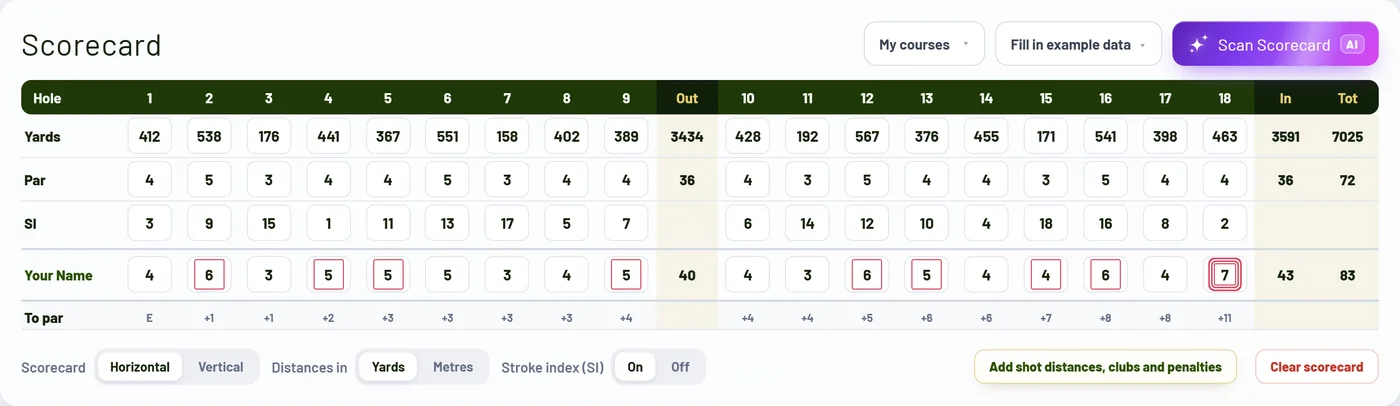
It exports a folder per hole with a transparent PNG for every shot, named in order: import it with Keywords from folders and every hole is a collection, ready to go. Exports come in HD and vertical, and 4K on Pro.
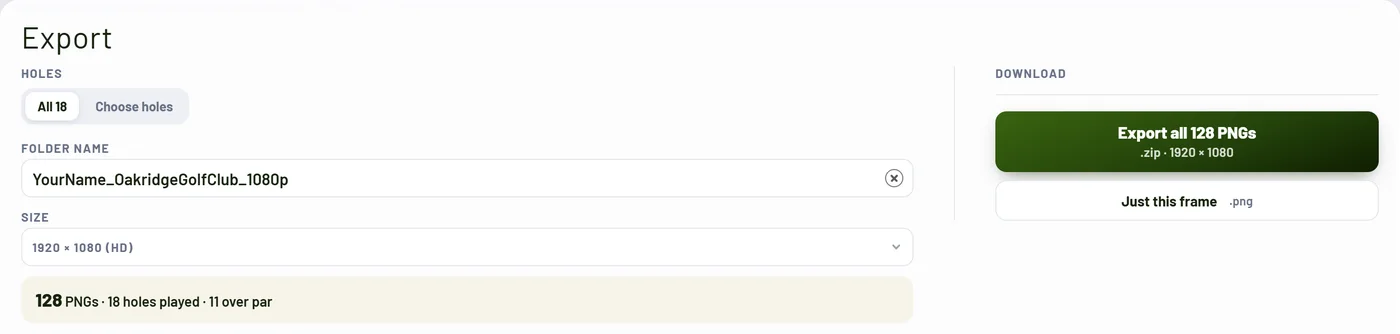
On Pro, animated designs export as transparent clips too. Pick Final Cut Pro in the generator's video format setting and you get .mov files in QuickTime Animation, which come in see-through. Pro also adds a scorecard graphic after every hole.
Try it on your next edit
Make a free account and preview every design with your own name before you pay anything. Starter and Pro both come with a 14-day free trial.